 techtvnew_tv
Why IPTV Stops Working (Most Users Misdiagnose It)
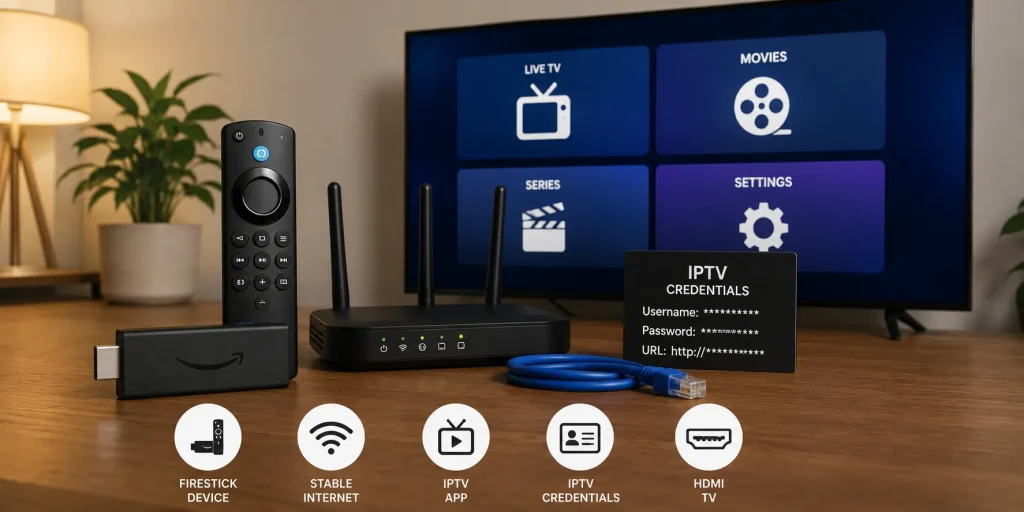
When IPTV stops working, most users immediately assume the service is broken. In reality, IPTV failures usually come from one of five layers: internet connection, device performance, application errors, playlist/login issues, or server side outages.
The key to fixing IPTV quickly is not random troubleshooting, but identifying the correct failure layer. This guide uses a structured diagnostic approach so you can pinpoint the issue instead of guessing.
Step 1: Identify the Type of IPTV Failure
Before applying fixes, classify the problem into one of these categories:
No Connection at All
- App wont open or crashes immediately
- Login fails instantly
- Blank screen on startup
Partial Loading Issues
- Some channels work, others don’t
- EPG not loading
- Categories missing
Playback Problems
- Buffering
- Freezing video
- Audio desync
Complete Service Failure
- Nothing loads on any device
- Multiple users affected
- Sudden outage across all channels
Each category points to a different root cause.
Step 2: Check If the Problem Is Global or Local
This is the most important diagnostic step.
Test on Another Device
Try IPTV on:
- Smartphone
- Smart TV
- Another Firestick or Android box
Test Another Network
- Switch from Wi-Fi to mobile hotspot
- Try Ethernet connection
Result Interpretation
- If IPTV works elsewhere → local issue
- If IPTV fails everywhere → provider or server issue
This step eliminates 50% of guesswork immediately.
Step 3: IPTV Login and Authentication Issues
A large percentage of IPTV not working cases are actually authentication failures.
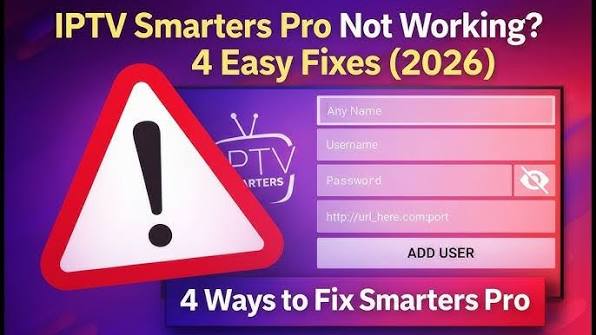
Xtream Codes Login Problems
Check:
- Username spelling
- Password accuracy
- Server URL correctness
- Subscription expiration
Even small character errors can block access completely.
M3U Playlist Issues
Common problems:
- Expired playlist link
- Blocked URL
- Changed server endpoints
- Corrupted playlist file
If login fails, always re check credentials before anything else.
Step 4: Device Level Problems (Firestick, Android TV, Smart TV)
Sometimes IPTV is fine but the device is failing.
Symptoms
- App crashes
- Slow navigation
- Black screen
- Delayed channel switching
Fixes
- Restart device completely
- Free storage space
- Remove unused apps
- Update device firmware
- Reinstall IPTV app
Low memory devices are especially prone to IPTV instability.
Step 5: Application-Specific Failures
Not all IPTV apps behave the same. Some are more stable than others.
Common App Issues
- Cache corruption
- Outdated version
- Compatibility bugs
- Broken EPG sync
Fix Strategy
- Clear cache (not data unless necessary)
- Update IPTV app
- Switch to alternative IPTV player
- Rebuild playlist inside the app
If one app fails, another may still work with the same credentials.
Step 6: Network Layer Problems (Beyond Speed Tests)
Unlike basic speed issues, IPTV problems often come from network instability rather than speed alone.
Symptoms of Network Instability
- Random freezing
- Channels load slowly
- Frequent reconnection
- Audio/video desync
Deeper Network Fixes
- Switch Wi-Fi band (2.4 GHz ↔ 5 GHz)
- Change DNS (Google DNS or Cloudflare)
- Disable IPv6 (if router supports it)
- Reduce connected devices
- Use Ethernet instead of Wi-Fi
This layer is often ignored but extremely important.
Step 7: ISP Restrictions or Traffic Shaping
Sometimes your internet provider interferes with IPTV traffic.
Signs of ISP Throttling
- IPTV works on VPN but not without it
- Streaming slows down only in evenings
- Other websites work fine but IPTV fails
Possible Fix
- Test VPN ON and OFF
- Change DNS settings
- Try different network
If VPN improves performance, ISP routing is likely involved.
Step 8: IPTV Server Side Issues
If everything on your side is correct, the problem may be the IPTV provider.
Server Failure Indicators
- All channels down simultaneously
- Multiple users reporting issues
- Login works but content does not load
- Sudden outage after working normally
What You Can Do
- Wait for service recovery
- Contact IPTV provider support
- Check if backup server is available
You cannot fix server side issues locally.
Step 9: Advanced Fixes (Power User Level)
If basic troubleshooting fails, try advanced optimization.
Network Reset
- Restart modem and router
- Release/renew IP address
- Factory reset router (last option)
Device Reset
- Clear system cache
- Reinstall IPTV app completely
- Reset streaming device settings
Performance Optimization
- Disable background updates
- Limit streaming resolution
- Use dedicated IPTV device (not overloaded TV apps)
Step 10: IPTV Black Screen or No Video Fix
A black screen usually means decoding or stream format issues.
Causes
- Unsupported codec
- Corrupted stream
- App rendering failure
Solutions
- Change video decoder in settings
- Switch IPTV player
- Restart stream
- Try different channel format
Step 11: EPG and Channel Loading Issues
Sometimes IPTV works but feels incomplete.
Symptoms
- Missing TV guide
- Empty categories
- Partial channel list
Fixes
- Refresh EPG manually
- Reload playlist
- Re-login to IPTV account
- Wait for server sync
Step 12: When Everything Else Fails
If IPTV still doesnt work after all steps:
Final Checklist
- Internet stable and tested
- Device updated and restarted
- App reinstalled
- Credentials verified
- Network tested with hotspot
- VPN tested ON/OFF
If all are correct, the issue is almost certainly provider-related.
Common Mistakes Users Make
- Reinstalling app without checking internet
- Assuming buffering = app problem
- Ignoring router issues
- Not testing another device
- Changing multiple settings at once
A structured approach is always faster than random fixes.
Whether you’re using a Smart TV or Firestick, our IPTV installation guide has you covered.
Frequently Asked Questions
Why did my IPTV suddenly stop working?
It can be due to expired subscription, server outage, app issues, or network instability.
How do I know if IPTV server is down?
If all channels fail across multiple devices, it is likely a server issue.
Why does IPTV work on phone but not TV?
This usually indicates a device or app compatibility problem on the TV.
Can VPN fix IPTV not working issues?
Sometimes yes, especially if ISP restrictions are involved.
What is the fastest way to fix IPTV?
Restart device, test internet, verify login, and switch network type.
Conclusion
Fixing IPTV not working issues requires structured diagnosis rather than random troubleshooting. By separating the problem into device, app, network, login, and server layers, you can quickly identify the real cause and apply the correct fix.
In most cases, the issue is not permanent and can be resolved within minutes once properly diagnosed.