 techtvnew_tv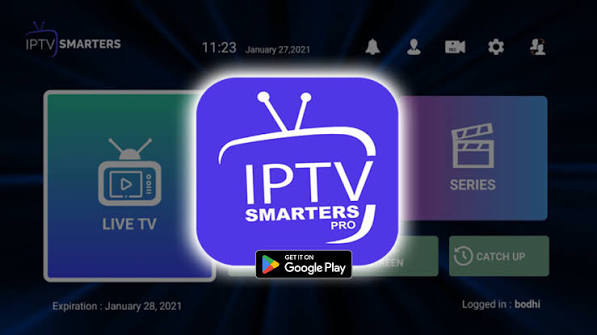
What Is IPTV Smarters?
IPTV Smarters is a popular IPTV player application used to stream live TV, movies, series, and on-demand content from IPTV service providers. It does not include any channels by itself and requires login credentials or playlist information from an external IPTV provider.
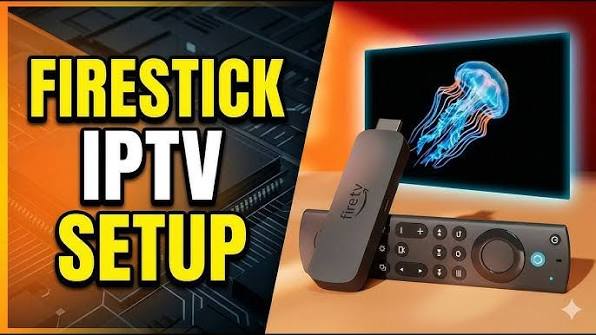
The app is widely used on Firestick, Android TV, Smart TVs, iOS, and Android devices because of its simple interface and support for multiple IPTV formats.
Before You Start IPTV Smarters Setup
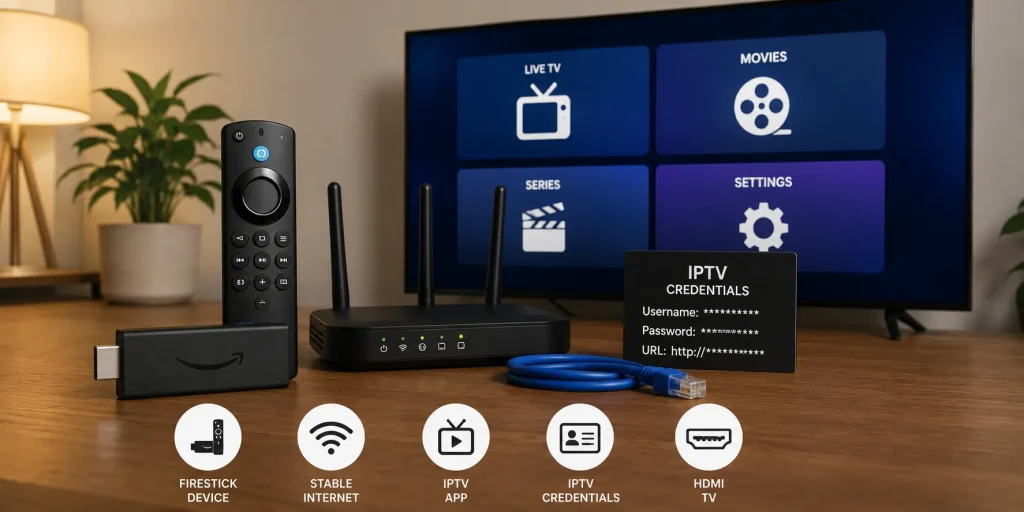
To set up IPTV Smarters successfully, you need:
- A compatible device (Firestick, Android TV, smartphone, or PC)
- Stable internet connection
- IPTV subscription from a provider
- Login credentials (Xtream Codes or M3U playlist URL)
Without these details, the app cannot load any content.
Step 1: Install IPTV Smarters App
The installation process depends on your device.
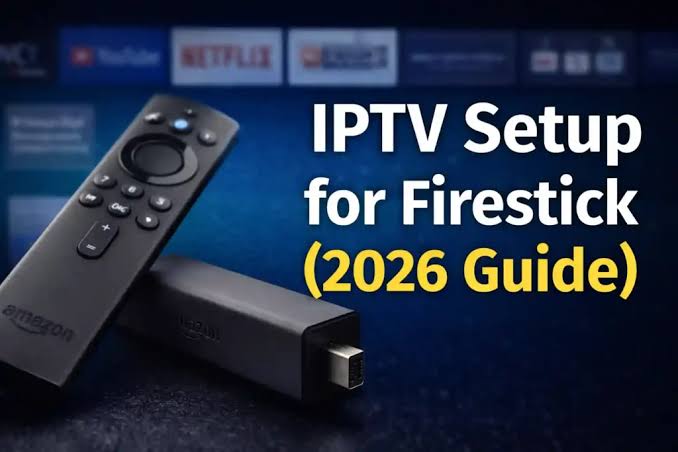
On Firestick / Android TV:
- Open the app store or use Downloader app
- Search for IPTV Smarters or IPTV Smarters Pro
- Download and install the application
On Android Mobile:
- Open Google Play Store
- Search IPTV Smarters
- Install official version
On iOS:
- Open App Store
- Search IPTV Smarters
- Download and install
Always install from trusted sources to avoid modified or unsafe versions.
Step 2: Launch IPTV Smarters
After installation:
- Open the app
- Accept terms and conditions
- Allow required permissions
You will then reach the login screen where setup begins.
Step 3: Choose Login Method
IPTV Smarters supports multiple login methods.
Xtream Codes API (Recommended)
This is the most commonly used method.
You need:
- Username
- Password
- Server URL
M3U Playlist URL
Alternative method using a direct playlist link.
Local File Upload
Used for offline or manually downloaded playlists.
Xtream Codes is usually faster and easier to manage.
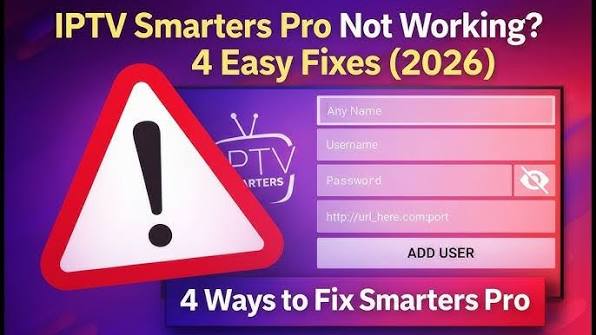
Step 4: Enter IPTV Credentials
Depending on your chosen method:
For Xtream Codes:
- Enter username
- Enter password
- Enter server URL
- Click Add User
For M3U Playlist:
- Paste playlist URL
- Assign a name
- Load playlist
The app will now connect to your IPTV provider’s server.
Step 5: Load Channels and Content
After successful login:
- Live TV channels will load
- Movies and series will appear
- Categories will be automatically organized
- EPG data may start syncing
This process may take a few seconds or minutes depending on playlist size.
Step 6: Configure EPG (TV Guide)
EPG helps you see program schedules.
If your provider supports it:
- EPG loads automatically
- Or you may need to enter EPG URL manually
A properly configured EPG improves navigation and viewing experience.
Step 7: Adjust Player Settings
Optimizing settings improves performance.
Recommended settings:
- Enable hardware decoding
- Adjust buffer size if needed
- Use external player (optional)
- Enable auto-play for next episode
These settings reduce buffering and improve playback stability.
Step 8: Organize Channels
IPTV Smarters allows customization:
- Add favorites
- Hide unwanted categories
- Sort channels by group
- Create playlists
This makes navigation faster and cleaner.
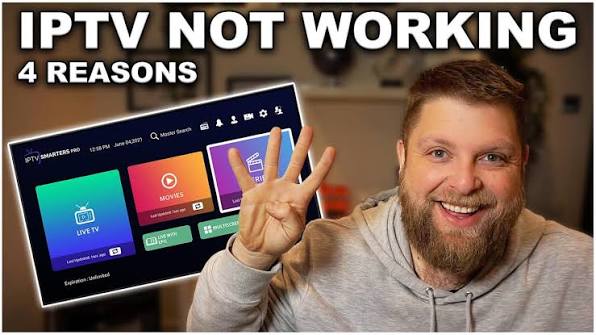
Step 9: Fix Common IPTV Smarters Issues
Login Not Working:
- Check credentials
- Verify server URL
- Ensure subscription is active
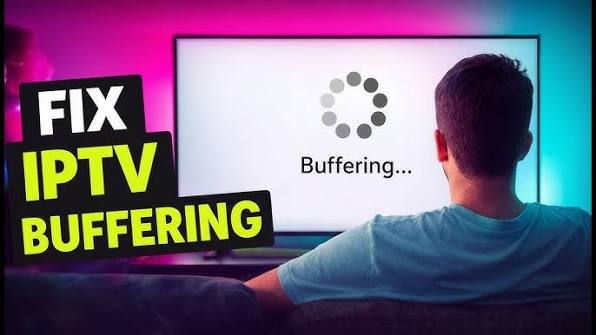
Buffering Issues:
- Switch to Ethernet
- Lower video quality
- Restart router
Channels Not Loading:
- Reload playlist
- Re-login account
- Check server status
App Freezing:
- Clear cache
- Update app
- Restart device
Step 10: Optimize IPTV Smarters Performance
For smooth streaming:
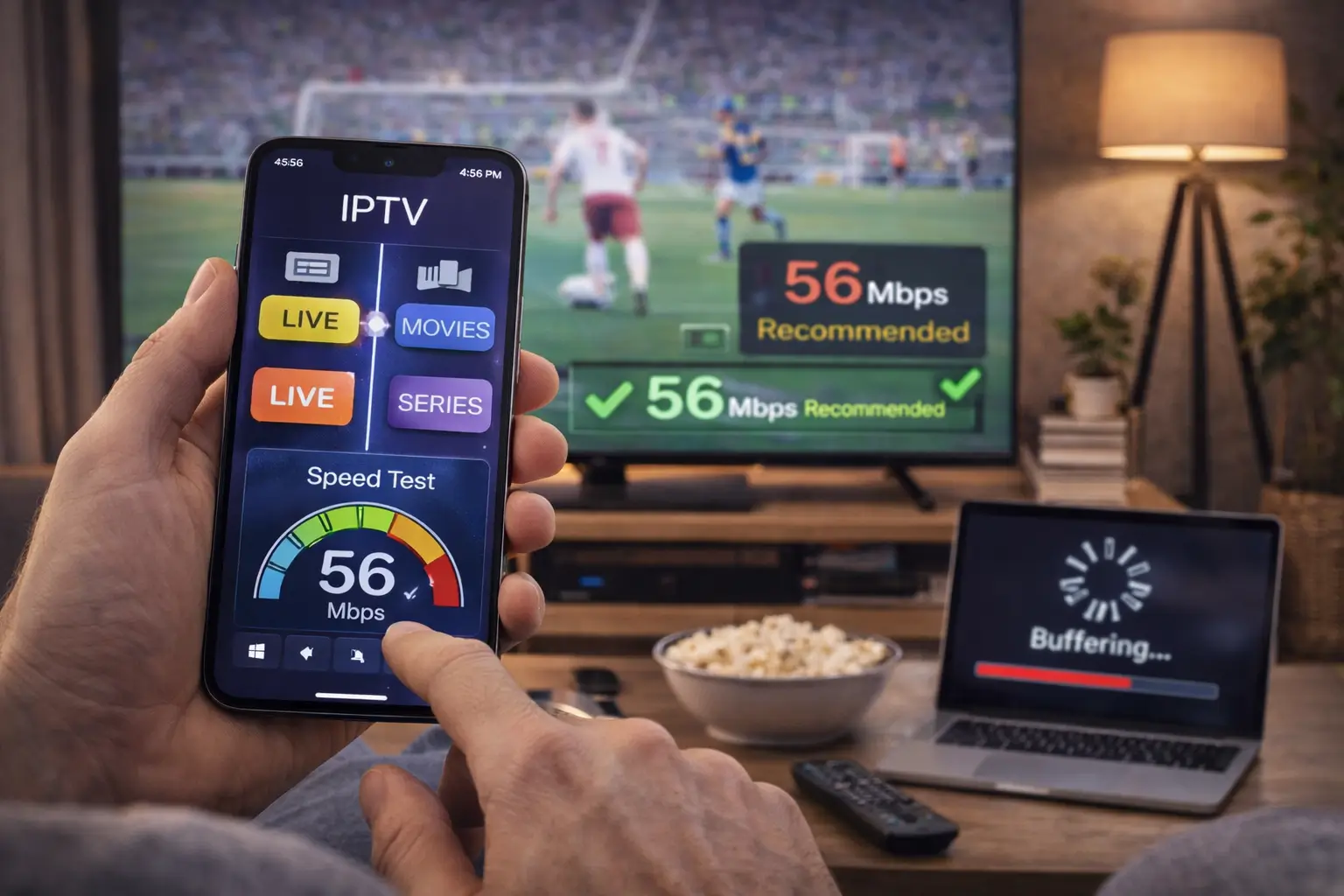
- Use fast internet connection (20 Mbps+)
- Prefer wired Ethernet over Wi-Fi
- Close background apps
- Keep app updated
- Clear cache regularly
Learn how to configure IPTV on any device with our Ultimate IPTV setup and streaming guide.
IPTV Smarters on Different Devices
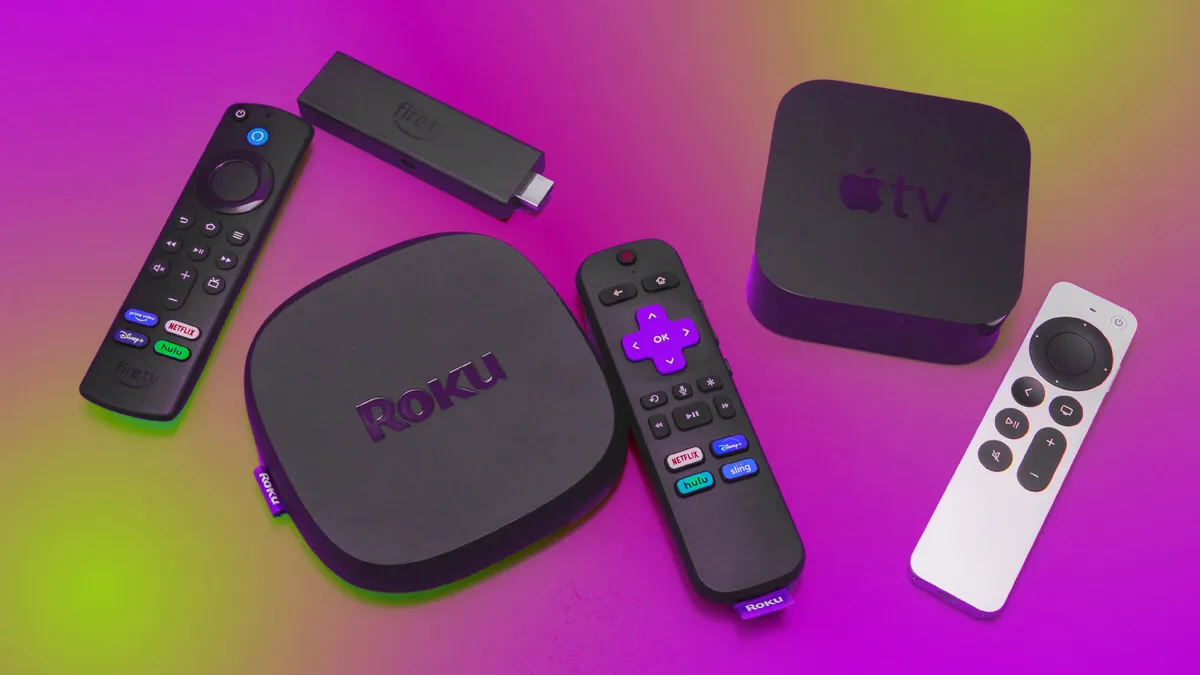
Firestick:
Best performance with Ethernet adapter and optimized settings.
Android TV:
Stable experience with hardware decoding enabled.
Mobile:
Good for portability but depends on mobile network quality.
PC:
Most flexible option with advanced playback controls.
IPTV Smarters vs Other IPTV Apps
IPTV Smarters is known for:
- Easy setup
- Multi-device support
- Clean interface
- Xtream Codes compatibility
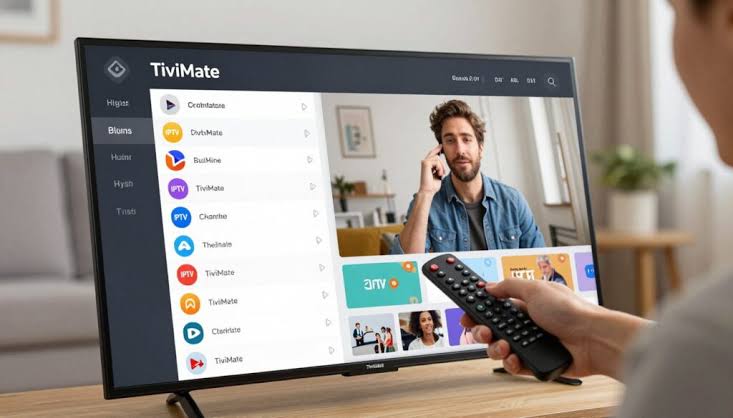
However, advanced users may prefer apps like TiviMate for deeper customization.
Frequently Asked Questions
Is IPTV Smarters free?
Yes, basic version is free, but some features may require premium versions.
Does IPTV Smarters include channels?
No, it is only a player and requires IPTV subscription.
Can I use multiple accounts?
Yes, multiple IPTV profiles can be added.
Why is IPTV Smarters buffering?
Usually due to internet speed, Wi-Fi issues, or server overload.
Is IPTV Smarters legal?
The app itself is legal, but content depends on your IPTV provider.
Conclusion
Setting up IPTV Smarters is a simple process that involves installing the app, entering IPTV credentials, and configuring basic settings. Once properly set up, it provides a smooth and organized way to stream live TV and on demand content across multiple devices.
For the best experience, always use a stable internet connection, keep the app updated, and optimize playback settings based on your device performance.