techtvnew_tv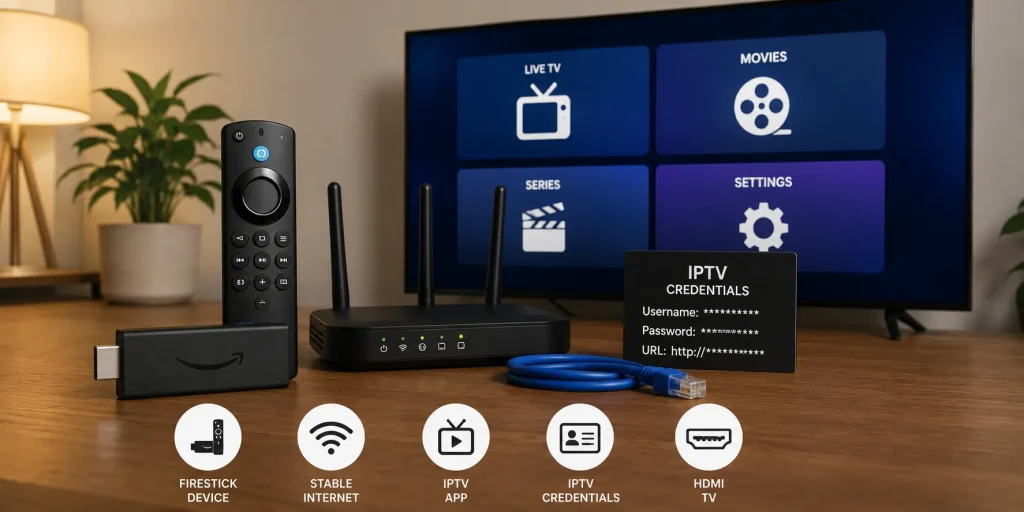
If youve ever heard about IPTV and thought this sounds complicated dont worry youre not alone. The truth is, IPTV setup is way easier than most people think. You dont need to be a tech expert, and you definitely don’t need fancy equipment to get started.
In this guide, well walk through everything step by step from what IPTV actually is, to setting it up on different devices, fixing common issues, and optimizing your streaming experience so it runs smooth like butter.
So grab your coffee, and lets break it down in a simple, friendly way.
What is IPTV? (Quick and Simple Explanation)
IPTV stands for Internet Protocol Television. In simple words, it means watching TV through the internet instead of traditional cable or satellite.
Instead of signals coming from a dish or cable box, everything is streamed directly over your internet connection.
Why people love IPTV:
- Huge channel selection
- Works on almost any device
- Often cheaper than cable
- On-demand movies and shows
- International content access
Basically, it turns your internet into a full TV entertainment system.
What You Need Before Setting Up IPTV
Before jumping into setup, make sure you have the basics ready:
1. Stable Internet Connection
- Minimum 10 Mbps for HD
- 25+ Mbps for 4K streaming
2. A Compatible Device
You can use:
- Smart TV
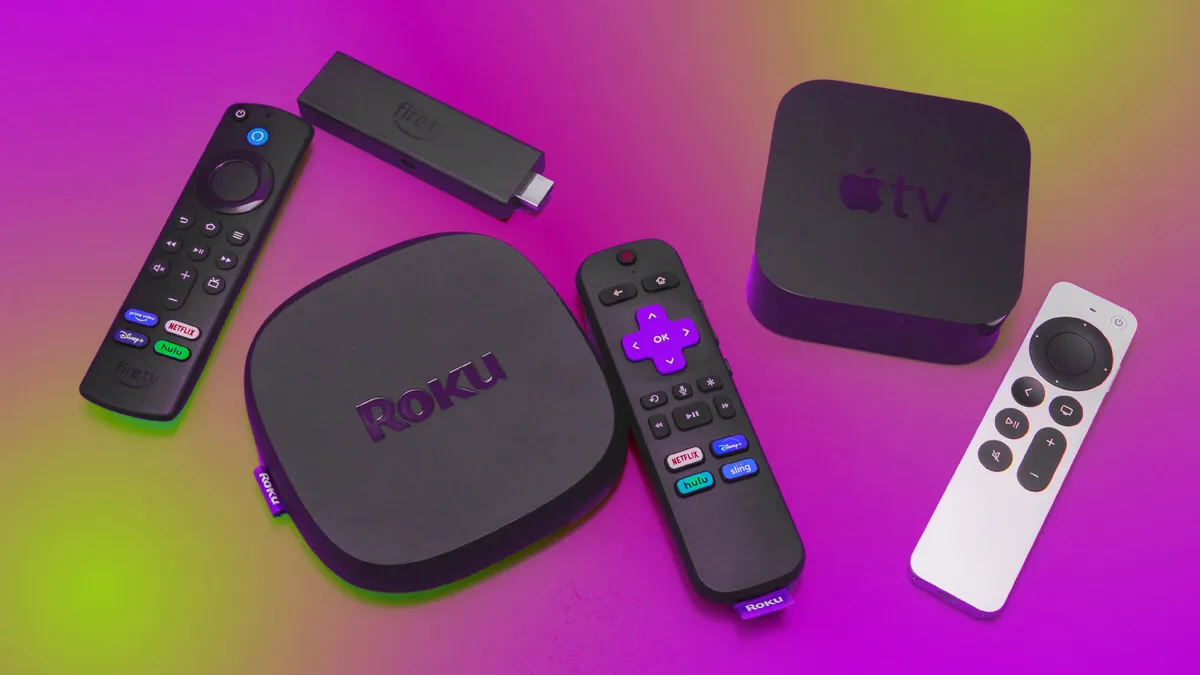
- Android TV Box
- Firestick / Fire TV
- Smartphone (Android or iPhone)
- PC or Mac
3. IPTV Subscription or Playlist
Usually comes in:
- M3U link
- Xtream Codes login
- IPTV app credentials
4. IPTV App
Popular apps include:
- IPTV Smarters
- TiviMate
- Smart IPTV
- GSE Smart IPTV
How to Set Up IPTV on Different Devices
Now let’s get into the fun part actual setup.
IPTV Setup on Smart TV
Most Smart TVs (Samsung, LG, etc.) support IPTV apps.
Steps:
- Open your TV App Store
- Search for IPTV Smarters or Smart IPTV
- Install the app
- Open it and select Login with Xtream Codes or Load M3U playlist
- Enter your IPTV provider details
- Click Login and wait for channels to load
Done. Youre basically ready to watch.
IPTV Setup on Firestick
Firestick is one of the most popular IPTV devices.
Steps:
- Go to Settings → My Fire TV
- Enable Apps from Unknown Sources
- Install Downloader app
- Download IPTV Smarters or TiviMate APK
- Install and open the app
- Add your IPTV credentials
- Start streaming
Firestick is popular because its cheap and super easy to use.
IPTV Setup on Android Phone
Steps:
- Go to Google Play Store
- Install IPTV Smarters or similar app
- Open the app
- Add playlist (M3U URL or Xtream login)
- Load channels and enjoy
You can literally turn your phone into a mini TV.
IPTV Setup on iPhone (iOS)
Steps:
- Download IPTV app from App Store
- Open the app
- Add playlist via URL or login
- Save and load channels
iOS apps are slightly more limited, but still work smoothly.
IPTV Setup on PC or Laptop
Steps:
- Download VLC Media Player or IPTV app
- Open network stream option
- Paste M3U URL
- Play and enjoy
PC setup is great for multitasking or watching on a big monitor.
Common IPTV Setup Mistakes (Avoid These!)
A lot of beginners run into problems because of simple mistakes:
❌ Wrong login details
Double check your M3U or Xtream codes.
❌ Slow internet
Buffering is usually internet-related, not app-related.
❌ Outdated apps
Always use updated IPTV apps.
❌ Too many devices
Some subscriptions limit connections.
How to Improve IPTV Streaming Quality
Nobody likes buffering. Heres how to fix it:
✔ Use Ethernet instead of Wi-Fi (if possible)
✔ Close background apps
✔ Use VPN if ISP throttles streaming
✔ Choose SD/HD instead of 4K on slow internet
✔ Restart router regularly
IPTV Not Working? Quick Fix Guide
If IPTV stops working, try this:
- Restart the app
- Re enter login details
- Check internet connection
- Try another device
- Update IPTV app
- Restart router
Most issues are simple and fixable in minutes.
Is IPTV Legal?
This depends on the service provider and country laws.
- Legal IPTV: licensed platforms like Netflix, Hulu, etc.
- Unverified IPTV: may offer pirated content
Always check your local regulations before using IPTV services.
Best IPTV Apps in 2026
Here are some widely used apps:
- IPTV Smarters Pro
- TiviMate
- Perfect Player IPTV
- GSE Smart IPTV
Each one has slightly different UI, but overall performance is similar.
Pro Tips for Better IPTV Experience
- Use VPN for privacy and stability
- Keep apps updated
- Use high-quality playlists
- Avoid free unstable servers
- Use wired connection when possible
Conclusion
IPTV setup is actually pretty simple once you understand the basics. Whether you’re using a Smart TV, Firestick, phone, or PC, the process is mostly the same: install app → add playlist → start watching.
The key to a smooth experience is good internet, a reliable IPTV provider, and a properly configured app.
Once you’ve set it up once, it becomes second nature.
H2: FAQs
1. What internet speed do I need for IPTV?
At least 10 Mbps for HD and 25 Mbps for 4K streaming.
2. Do I need a VPN for IPTV?
Not required, but recommended for privacy and stability.
3. Why is my IPTV buffering?
Usually due to slow internet, overloaded servers, or Wi-Fi issues.
4. Can I use IPTV on multiple devices?
Yes, but it depends on your subscription limits.
5. What is the best IPTV app?
IPTV Smarters and TiviMate are the most popular choices.