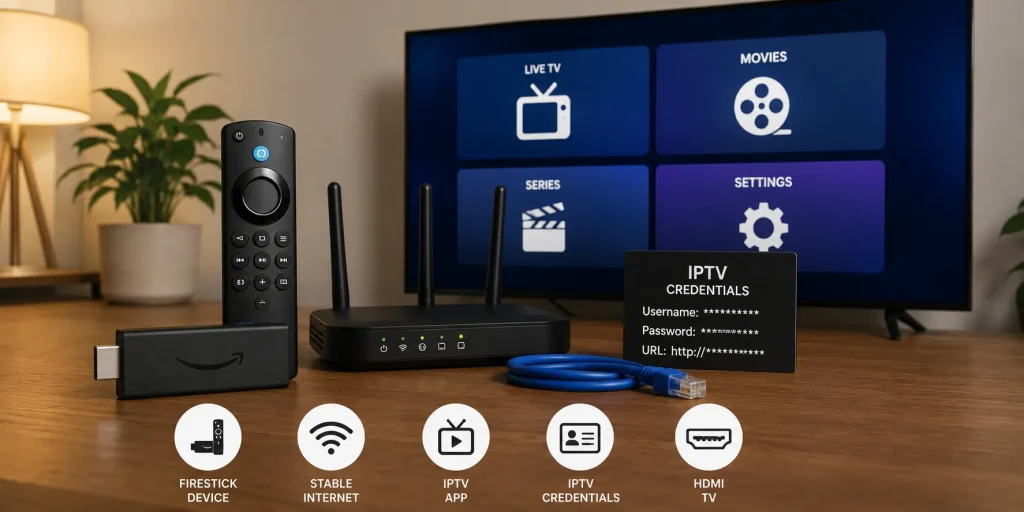
techtvnew_tv
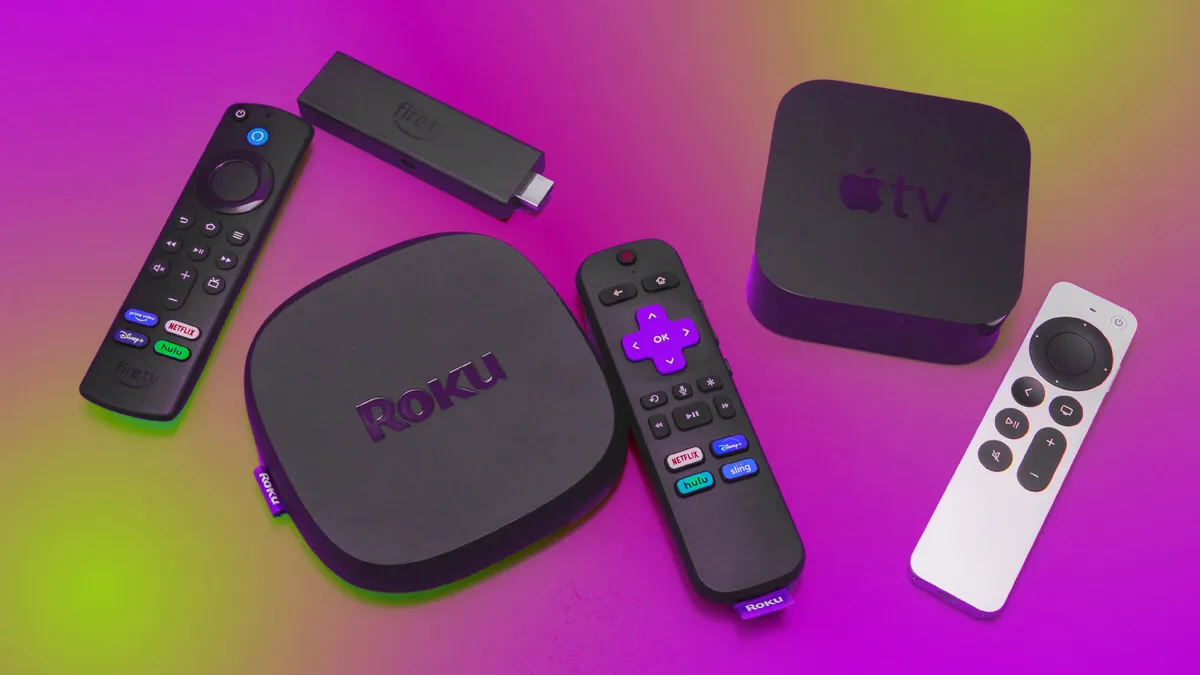
Smart TVs are basically regular TVs but with brains. They connect to the internet, run apps, stream content, and sometimes even listen to your voice commands.
But heres the thing: most people only use like 30% of what their Smart TV can actually do.
So in this guide, were going to break everything down in a simple, friendly way so you can set up your Smart TV, install apps, fix issues, and unlock hidden features you probably didn’t even know existed.
What is a Smart TV?
A Smart TV is a television that connects to the internet and allows you to:
- Watch YouTube, Netflix, and streaming apps
- Browse the web (on some models)
- Install apps
- Mirror your phone screen
- Use voice commands (on newer models)
Basically, it turns your TV into a giant smartphone screen.
First Time Smart TV Setup (Step by Step)
When you first turn on your Smart TV, heres what usually happens:
Step 1: Connect to Wi-Fi
- Go to Settings
- Select Network
- Choose your Wi-Fi
- Enter password
Tip: Use 5GHz Wi-Fi if available for smoother streaming.
Step 2: Sign in to Your Account
Depending on your TV brand:
- Samsung Account
- Google Account (Android TV / Google TV)
- LG Account
This helps you download apps and sync settings.
Step 3: Update Software
Always check for updates:
- Fixes bugs
- Improves performance
- Adds new features
Installing Apps on Smart TV
This is where the fun starts.
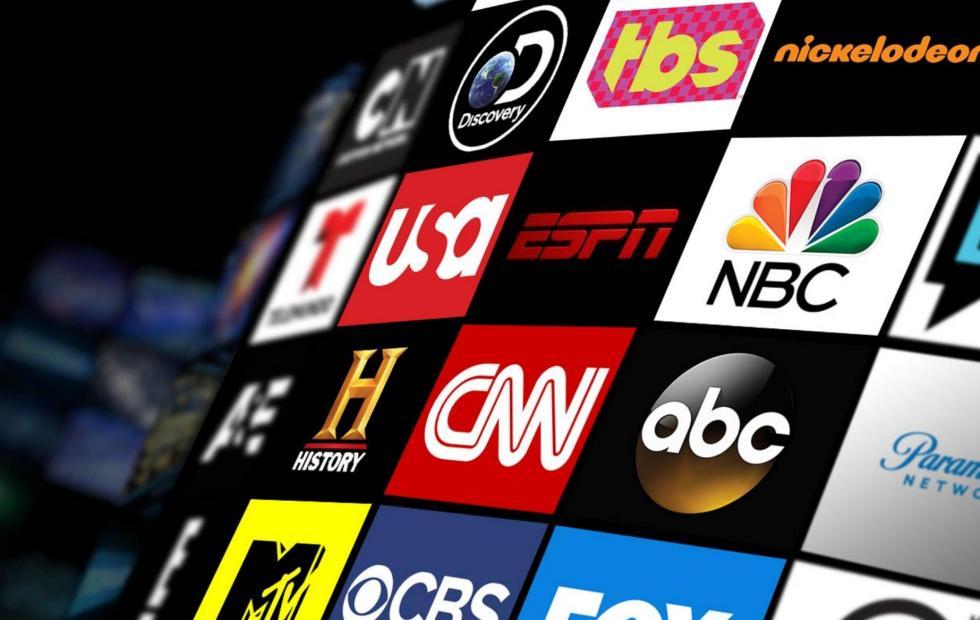
Popular Apps to Install
- YouTube
- Netflix
- Disney+
- Amazon Prime Video
- IPTV apps (if supported)
How to Install Apps
- Open App Store (Samsung Store / Google Play / LG Content Store)
- Search for app name
- Click Install
- Open and sign in
Done. Thats it.
Screen Mirroring & Casting
You can display your phone screen on your TV.
Android (Cast Screen)
- Open Quick Settings
- Tap Cast
- Select your TV
iPhone (AirPlay)
- Open Control Center
- Tap Screen Mirroring
- Select TV
Now your TV becomes a big version of your phone.
Hidden Smart TV Features Most People Dont Use
Most users dont know these exist:
✔ Voice control
Open YouTube or Play Netflix
✔ USB media playback
Plug in USB → watch movies directly
✔ Bluetooth connection
Connect headphones or speakers
✔ Gaming mode
Reduces lag for better gaming experience
✔ Ambient mode
Turns TV into photo display or art
Smart TV Settings You Should Change Immediately
These small tweaks improve performance:
✔ Turn off autoplay previews
✔ Disable unused notifications
✔ Enable energy saving mode
✔ Adjust picture mode (Cinema / Movie mode is best)
Common Smart TV Problems (And Fixes)
Apps not opening
Fix: Restart TV or update software
Wi-Fi disconnecting
Fix: Move router closer or switch to Ethernet
Slow performance
Fix: Clear cache or uninstall unused apps
No sound
Fix: Check audio output settings or HDMI connection
How to Improve Smart TV Performance
✔ Keep software updated
✔ Dont overload apps
✔ Use wired internet if possible
✔ Restart TV weekly
✔ Free up storage
Smart TV vs Normal TV
| Feature | Smart TV | Normal TV |
|---|---|---|
| Internet | Yes | No |
| Apps | Yes | No |
| Streaming | Built-in | External device needed |
| Updates | Yes | No |
Smart TVs clearly win in flexibility.
Best Uses for Smart TV
- Streaming movies and shows
- Live sports
- YouTube browsing
- Gaming
- Video calls (some models)
- Music streaming
Conclusion
Smart TVs are powerful devices but most people dont use them to their full potential.
Once you understand the basics like setup, apps, casting, and settings, your TV becomes way more than just a screen it becomes your full entertainment hub.
Small adjustments can massively improve your experience.
FAQs
1. Do Smart TVs need internet?
Yes, for apps and streaming features.
2. Can I install any app on Smart TV?
Only apps available in your TVs app store.
3. Why is my Smart TV slow?
Usually due to full storage or outdated software.
4. Can I use Smart TV without Wi-Fi?
Yes, but only basic TV functions will work.
5. Is screen mirroring available on all Smart TVs?
Most modern Smart TVs support it.