techtvnew_tv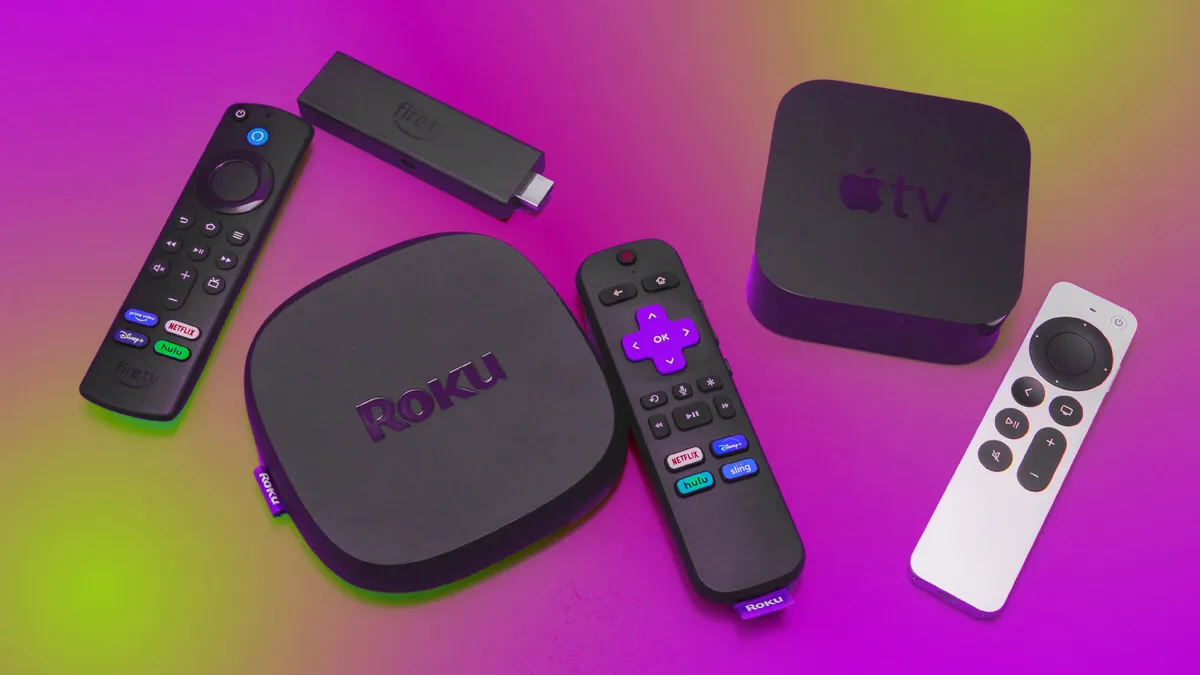
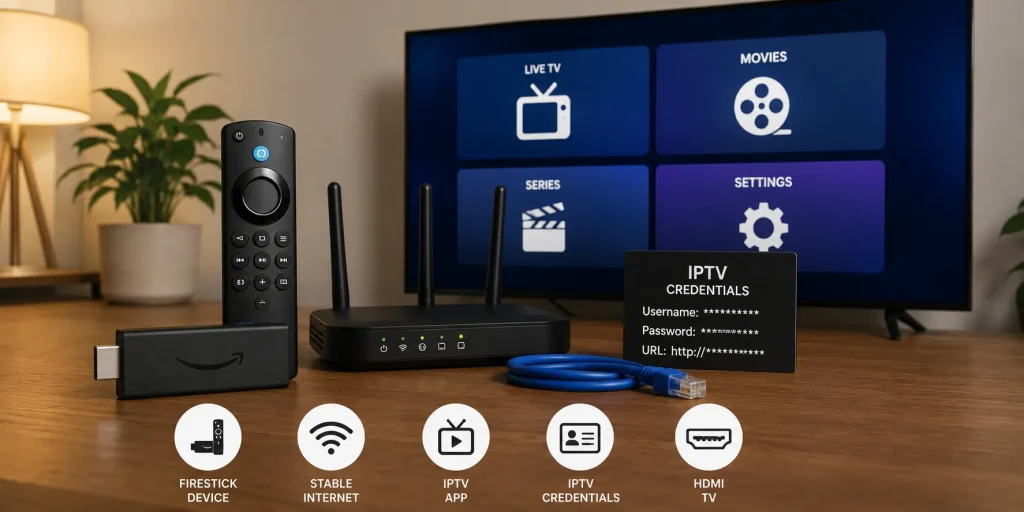
Streaming devices are basically small gadgets that plug into your TV and instantly turn it into a Smart TV.
If your TV feels old or limited, these devices are the cheapest way to upgrade it without buying a new television.
In this guide well break down how to set up the most popular streaming devices in a super simple, friendly way.
What is a Streaming Device?
A streaming device is a small box or stick that connects to your TV via HDMI and lets you:
- Watch Netflix, YouTube, Disney+
- Install streaming apps
- Watch live TV
- Cast from your phone
- Browse content easily
Think of it as a brain upgrade for your TV.
Most Popular Streaming Devices
Lets look at the big players:
- Amazon Firestick
- Roku Streaming Stick
- Google Chromecast
- Apple TV
- Android TV Boxes
Each one has slightly different features, but they all do the same core job: streaming content.
Firestick Setup Guide (Most Popular Choice)
Firestick is probably the easiest and most widely used device.
Step 1: Plug It In
- Insert Firestick into HDMI port
- Connect power cable
Step 2: Pair Remote
- Press home button
- Wait for pairing
Step 3: Connect Wi-Fi
- Select network
- Enter password
Step 4: Sign in to Amazon Account
- Required for app access
Step 5: Install Apps
- Go to App Store
- Download Netflix, YouTube, IPTV apps, etc.
Done youre ready to stream.
Roku Setup Guide
Roku is known for simplicity.
Setup Steps:
- Plug Roku into HDMI
- Connect power
- Select Wi-Fi
- Create or log into Roku account
- Install channels (apps)
Roku is super beginner friendly.
Chromecast Setup Guide
Chromecast works differently it uses your phone.
Steps:
- Plug Chromecast into TV
- Open Google Home app
- Connect device to Wi-Fi
- Start casting from apps
You dont really use a remote much here your phone controls everything.
Apple TV Setup
Apple TV is premium and smooth.
Steps:
- Connect HDMI
- Sign in with Apple ID
- Connect Wi-Fi
- Install apps from App Store
Best for Apple ecosystem users.
Android TV Box Setup
Android TV boxes are flexible and powerful.
Steps:
- Connect HDMI
- Sign in with Google account
- Install apps from Play Store
- Customize interface
Good for advanced users and IPTV setups.
Common Setup Mistakes
Avoid these:
❌ Weak Wi-Fi connection
❌ Wrong HDMI input selected
❌ Not updating software
❌ Overloading apps
These cause most issues beginners face.
How to Improve Streaming Performance
✔ Use 5GHz Wi-Fi
✔ Restart device weekly
✔ Clear cache regularly
✔ Keep software updated
✔ Avoid cheap unstable adapters
Streaming Device vs Smart TV Apps
| Feature | Streaming Device | Smart TV Apps |
|---|---|---|
| Speed | Faster | Medium |
| Updates | Frequent | Slower |
| App variety | High | Limited |
| Cost | Low | Built-in |
Streaming devices often perform better than built in Smart TV systems.
Troubleshooting Common Problems
Device not turning on
Fix: Check power cable and adapter
Wi-Fi issues
Fix: Restart router or move closer
Apps crashing
Fix: Update or reinstall app
Remote not working
Fix: Replace batteries or re-pair remote
Best Streaming Device Choice (Simple Guide)
- Beginner → Firestick or Roku
- Apple users → Apple TV
- Casting lovers → Chromecast
- Advanced users → Android TV Box
Conclusion
Streaming devices are one of the easiest ways to upgrade your TV experience without spending a lot of money.
Once set up, they give you access to thousands of apps, live TV, and on-demand content all in one place.
Its basically a small upgrade with a big impact.
FAQs
1. Do I need internet for streaming devices?
Yes, they require Wi-Fi or Ethernet.
2. Which streaming device is best?
Firestick is the most popular and beginner-friendly.
3. Can I install IPTV apps on these devices?
Yes, most support IPTV apps.
4. Do streaming devices slow down over time?
Only if not updated or overloaded with apps.
5. Can I use multiple streaming devices?
Yes, on different TVs.