 techtvnew_tv
Why Use IPTV on Firestick?
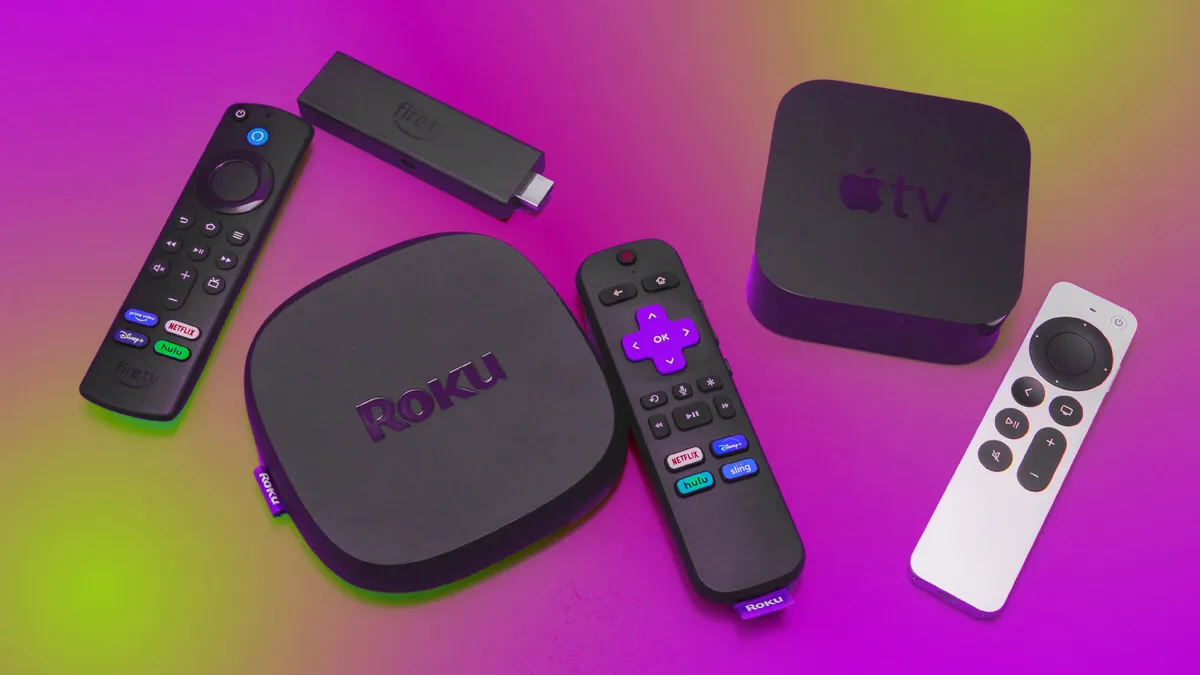
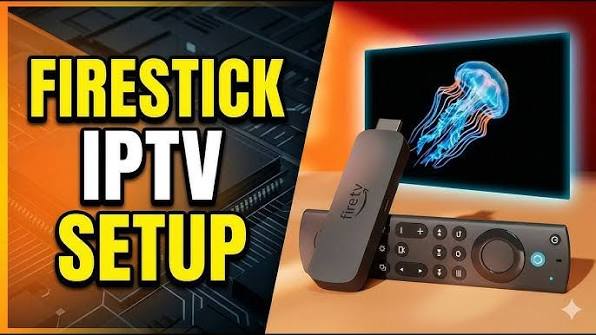
Amazon Fire TV Stick has become one of the most popular streaming devices thanks to its affordability, portability, and ease of use. When combined with a legitimate IPTV service, it provides access to live TV, video on demand, and other streaming content through a simple interface.
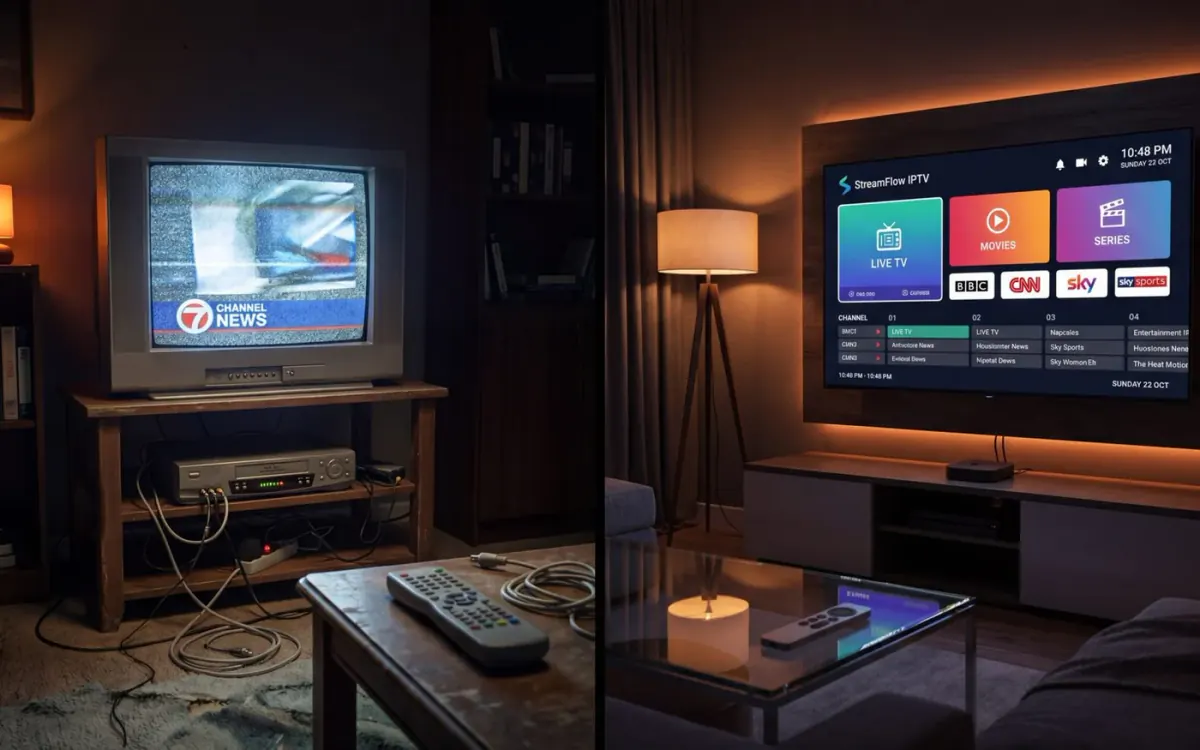
Unlike traditional cable or satellite television, IPTV delivers content over an internet connection, allowing you to watch your favorite programs on your Firestick without additional hardware.
What You Need Before Getting Started
Before setting up IPTV on your Firestick, make sure you have everything required for a smooth installation.
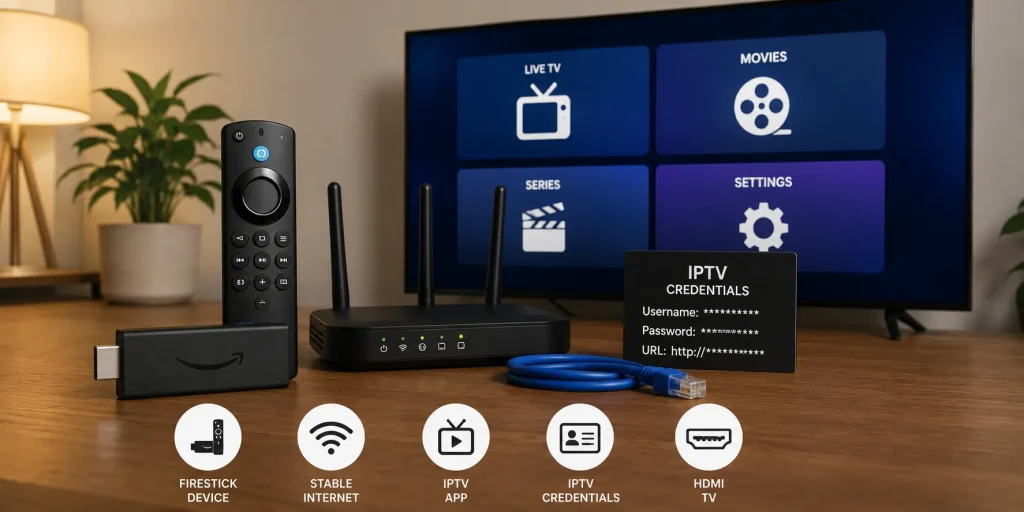
You will need a Fire TV Stick connected to your television, a stable internet connection, an Amazon account, an IPTV player application, and valid playlist information or login credentials provided by your IPTV service.
Using a fast and reliable internet connection will significantly improve streaming quality, especially when watching HD or 4K content.
Step 1: Prepare Your Firestick
Before installing an IPTV player, ensure your Firestick is fully updated.
Open Settings, navigate to My Fire TV, select About, and check for system updates. Installing the latest software version helps improve compatibility and overall performance.
Restart your Firestick after updating to clear temporary files and ensure a fresh start.
Step 2: Install an IPTV Player
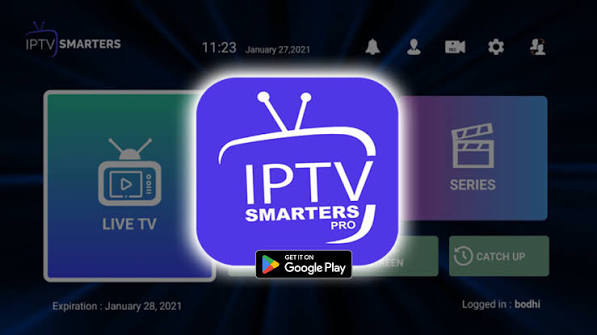
An IPTV player is required to load your playlist or IPTV account information. These applications act as media players and do not include TV channels or subscriptions.
Several IPTV players are available for Firestick, each offering different features such as Electronic Program Guide (EPG), favorites, parental controls, and multi playlist support.
Choose the player that best suits your preferences and install it on your device.
Step 3: Launch the IPTV App
After installation, open the IPTV player from your Firestick home screen.
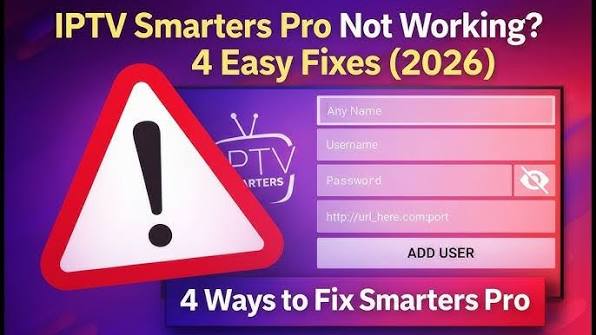
Most IPTV applications will ask you to add a playlist or sign in using credentials supplied by your IPTV provider.
Depending on your provider, you may receive:
- An M3U playlist URL
- Xtream Codes login information
- Username and password
- EPG URL
Enter the information exactly as provided to avoid connection issues.
Step 4: Load Your Playlist
Once your playlist information has been entered, the application will begin downloading channel lists, categories, and available content.
This process may take several minutes if your playlist contains a large number of channels or on-demand videos.
After synchronization is complete, your content will be organized into categories for easier navigation.
Step 5: Configure the Electronic Program Guide (EPG)
An Electronic Program Guide displays schedules for live television channels.
If your IPTV provider supplies an EPG URL, enter it in the application’s settings and allow the guide to download.
A correctly configured EPG lets you browse upcoming programs, view channel schedules, and quickly find live broadcasts.
Step 6: Customize Your Experience
Most IPTV players allow extensive customization to improve navigation.
You can organize favorite channels, hide unwanted categories, change display themes, rearrange channel groups, adjust playback settings, and configure parental controls.
Taking a few minutes to personalize the interface can greatly enhance your viewing experience.
Best Settings for Smooth IPTV Streaming
Optimizing your Firestick settings can reduce buffering and improve playback quality.
Whenever possible, connect your Firestick to a strong Wi-Fi signal or use an Ethernet adapter for a more stable connection.
Close unnecessary background applications, restart your device regularly, and keep both the Firestick software and IPTV application updated.
If your IPTV player supports hardware decoding, enabling it may improve video performance on compatible devices.
Common IPTV Setup Problems
During installation, you may encounter a few common issues.
If channels fail to load, double-check your playlist URL or login credentials. Even a small typing error can prevent successful authentication.
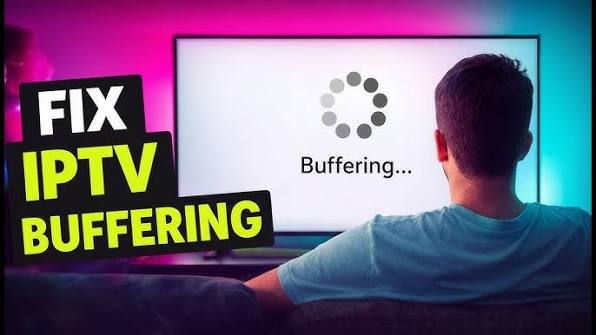
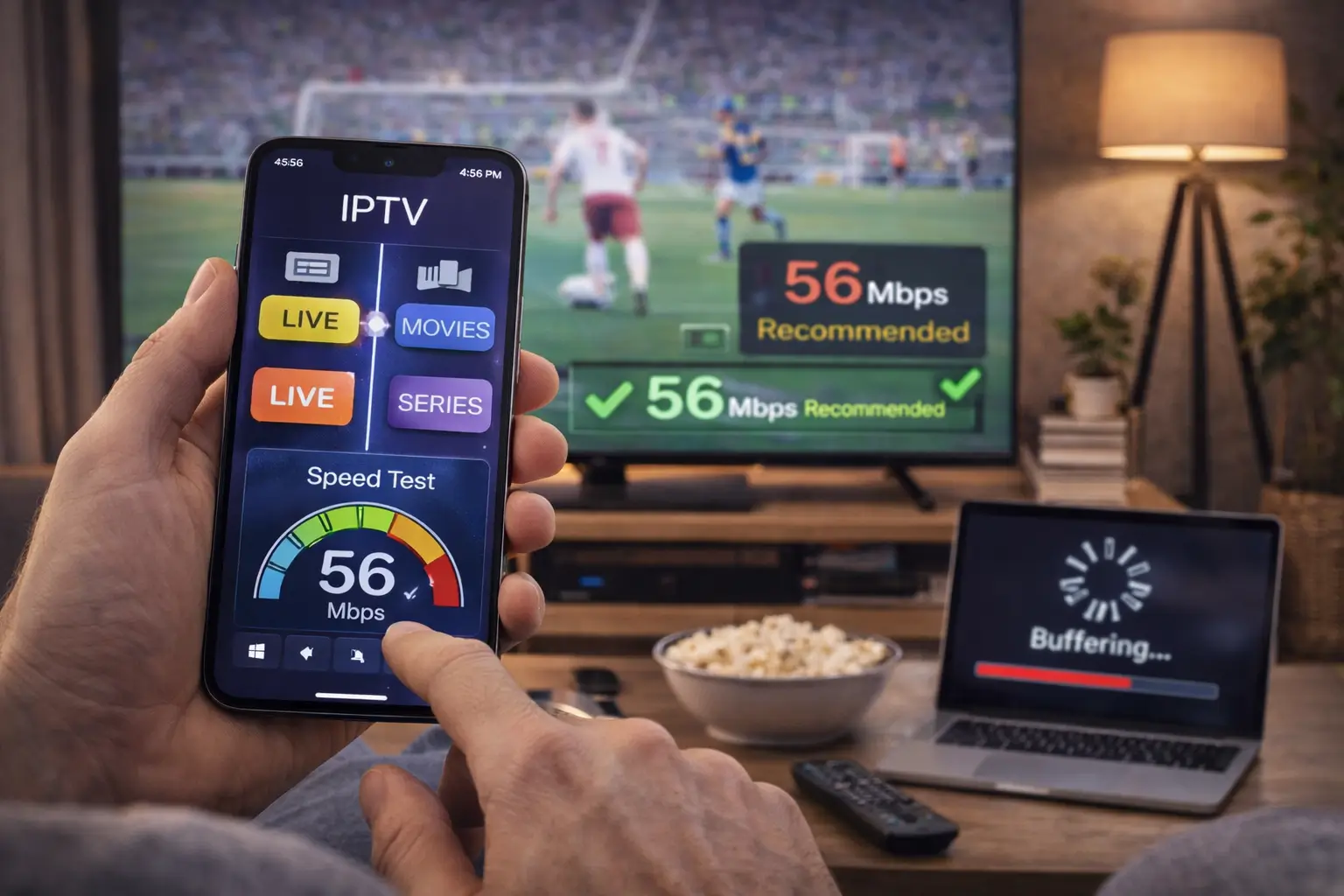
If buffering occurs frequently, test your internet speed and move your Firestick closer to your wireless router if necessary.
When the Electronic Program Guide does not appear, verify that the EPG URL is correct and allow additional time for the guide to finish downloading.
Restarting the IPTV application often resolves temporary synchronization problems.
Firestick IPTV Performance Tips
To achieve the best streaming experience, keep your Firestick clean and optimized.
Clear application cache periodically to free storage space.
Avoid installing unnecessary applications that consume system resources.
Restart your Firestick every few days to refresh memory.
Use high-quality HDMI connections and ensure your television supports the selected video resolution.
Maintaining a stable internet connection is often the single most important factor in achieving smooth IPTV playback.
Security and Privacy Considerations
Only use IPTV services that you are authorized to access and that comply with applicable laws.
Download IPTV applications from trusted sources whenever possible, keep your device updated, and avoid entering your account information into unfamiliar or suspicious applications.
Regular software updates help improve both security and compatibility.
Frequently Asked Questions
Can I use IPTV on any Firestick model?
Yes. Most modern Fire TV Stick models support IPTV applications, although newer devices generally provide faster performance and smoother navigation.
Do IPTV apps include TV channels?
No. IPTV applications are media players only. They require a playlist or account credentials from a legitimate IPTV service.
Why is my IPTV buffering on Firestick?
Buffering can result from a slow internet connection, network congestion, an overloaded streaming server, or incorrect application settings.
Can I use multiple IPTV playlists?
Many IPTV players support multiple playlists, allowing you to manage content from more than one provider.
Is IPTV difficult to install on Firestick?
No. Most users can complete the setup process within a few minutes by installing an IPTV player and entering the playlist information supplied by their IPTV provider.
Improve your viewing experience by following the tips in our IPTV setup guide.
Conclusion
Setting up IPTV on a Firestick is a straightforward process that can transform your streaming experience. After installing a compatible IPTV player and adding your playlist or account credentials, you’ll have convenient access to live television, video on demand, and other supported content through a single interface.
For the best results, keep your Firestick updated, maintain a reliable internet connection, organize your playlists, and regularly optimize your device’s performance. With the proper setup and a legitimate IPTV service, Firestick remains one of the most convenient and affordable platforms for enjoying internet based television.