If youve been searching for simple, no stress IPTV setup tutorials, youre in the right place 👌
Whether youre using a Firestick, Android TV, Smart TV, phone, tablet, or even a laptop this guide will walk you through everything in a super easy, friendly way.
No complicated tech talk.
No confusing steps.
Just real, practical help.
Lets get you streaming 🚀
What Is IPTV (In Simple Words)?
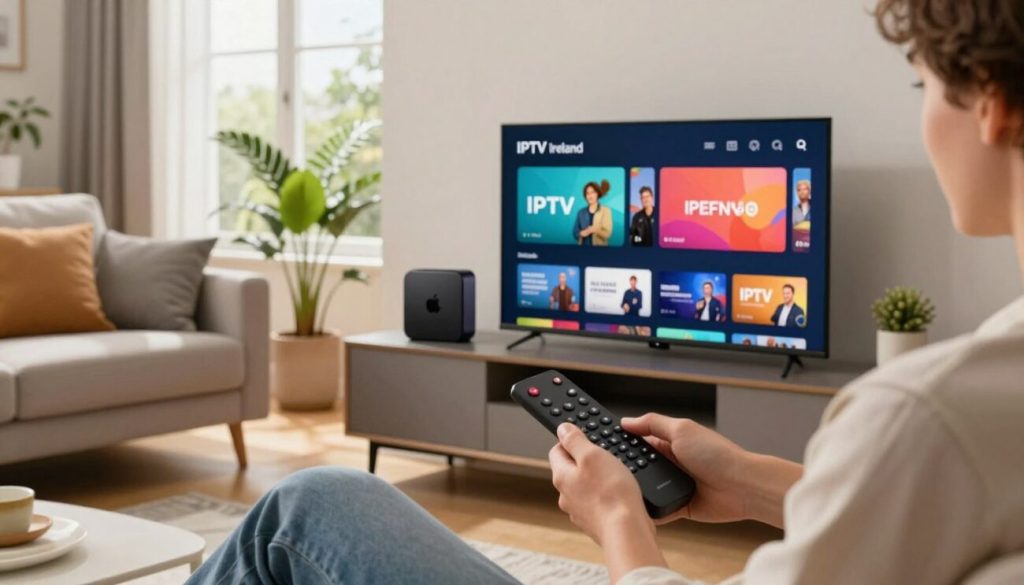
IPTV stands for Internet Protocol Television.
Instead of using:
- Cable
- Satellite
- Antenna
IPTV delivers TV channels and video content through your internet connection.
So basically, if you have Wi-Fi you can stream.
That’s why IPTV is becoming insanely popular in 2026.
Why People Love IPTV
Heres why more and more users are switching to IPTV:
- 📺 Access to live TV channels
- 🌍 International content
- 🎬 On demand movies and shows
- ⚽ Sports streaming
- 💰 Often cheaper than cable
- 📱 Works on almost any device
And the best part? Setup is usually quick and easy once you know how.
What You Need Before Setting Up IPTV
Before we jump into device tutorials, make sure you have:
- A stable internet connection (at least 15 Mbps recommended)
- An IPTV subscription or playlist (usually M3U URL or Xtream Codes)
- A compatible app (we’ll cover those below)
Thats it.
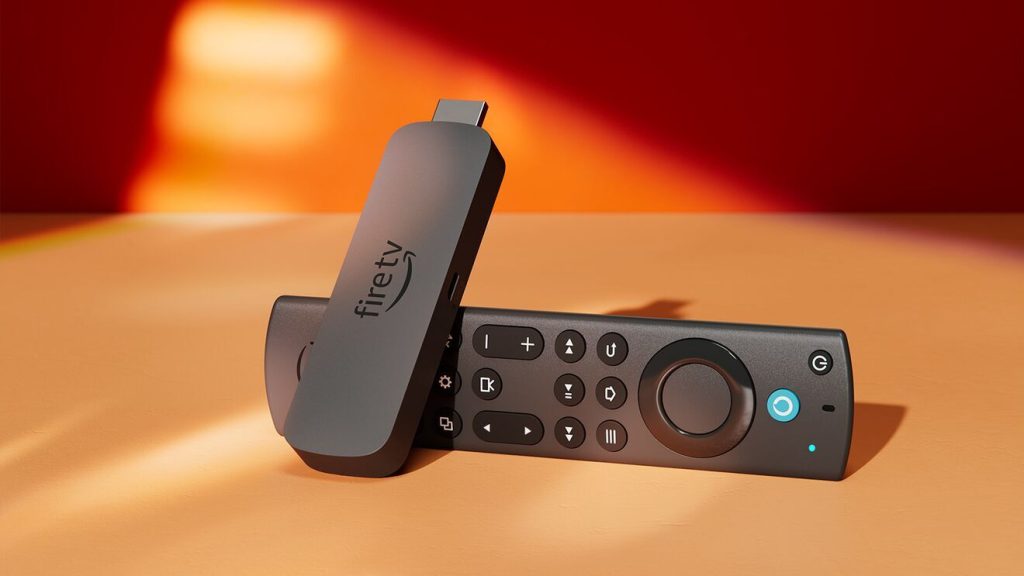
IPTV Setup on Firestick (Step by Step)
Firestick is one of the most popular IPTV devices right now.
Step 1: Install an IPTV Player App
Common IPTV apps for Firestick include:
- IPTV Smarters
- TiviMate
- XCIPTV
- Flix IPTV
You can install many of these directly from the Amazon App Store.
If not, you may need to use Downloader (like in Kodi installation).
Step 2: Open the App
Once installed:
- Launch the IPTV app
- Choose login method
You’ll usually see:
- Login with Xtream Codes API
- Load M3U Playlist
Step 3: Enter Your IPTV Details
Your provider should give you:
- Username
- Password
- Server URL
OR
- M3U playlist link
Enter the details exactly as given.
Click Login.
Boom 💥 Your channels should load.
IPTV Setup on Android TV
Android TV boxes and Smart TVs are super IPTV-friendly.
How to Install IPTV on Android TV
- Open Google Play Store
- Search for IPTV app (TiviMate or IPTV Smarters works great)
- Install
- Open the app
- Add playlist or Xtream Codes
Thats it.
Android TV is usually smoother than older Firestick models.
IPTV Setup on Samsung & LG Smart TVs
Smart TVs are a bit different because they use their own app stores.
For Samsung (Tizen OS):
- Open Samsung App Store
- Search for IPTV player
- Install Smart IPTV or similar
- Upload your M3U playlist through their website
- Restart app
For LG (WebOS):
- Go to LG Content Store
- Install IPTV player
- Add playlist link
Smart TVs are clean setups no extra device needed.
IPTV Setup on Android Phone or Tablet
This one is super easy.
- Open Google Play Store
- Install IPTV Smarters or XCIPTV
- Open app
- Add Xtream Codes or M3U link
- Start streaming
Mobile IPTV is great for travel or backup streaming.
IPTV Setup on iPhone or iPad
For iOS:
- Open App Store
- Install IPTV Smarters Player
- Open app
- Enter login details
Thats it.
Apple devices handle IPTV pretty smoothly nowadays.
IPTV Setup on Windows or Mac
You can also use IPTV on your computer.
Options:
- VLC Media Player (for M3U playlists)
- IPTV Smarters desktop version
Using VLC:
- Open VLC
- Click Media
- Open Network Stream
- Paste M3U URL
- Click Play
Simple and works well.
M3U vs Xtream Codes – Whats the Difference?
Most IPTV providers give you two options.
M3U Playlist
- Just a link
- Works with VLC
- Easy copy-paste
Xtream Codes API
- Username
- Password
- Server URL
- Better organized
- Faster loading
If both are available, Xtream Codes usually feels smoother.
Common IPTV Problems (And Fixes)
Lets talk real life.
Sometimes IPTV doesnt work perfectly.
Heres what to do.
Buffering Issues
Possible reasons:
- Slow internet
- Wi-Fi interference
- ISP throttling
- Weak device
Fixes:
- Use Ethernet instead of Wi-Fi
- Restart router
- Lower stream quality
- Clear app cache
Channels Not Loading
- Check login details
- Make sure subscription is active
- Restart app
- Try readding playlist
App Crashes
- Clear cache
- Update app
- Restart device
Most problems are easy to fix.
Best IPTV Settings for Smooth Streaming
Want better performance?
Try these tips:
- Set buffer size inside app
- Use 5GHz Wi-Fi
- Close background apps
- Restart device weekly
- Use wired connection if possible
Small tweaks make a big difference.
Is IPTV Legal?
This depends on the content source.
IPTV technology itself is legal.
But legality depends on:
- The provider
- The broadcast rights
- Your countrys laws
Always use legitimate services and follow local regulations.
Should You Use a VPN with IPTV?
Many IPTV users choose to use a VPN for:
- Privacy
- Avoid ISP throttling
- Accessing geo restricted content
Its optional but popular among experienced users.
Beginner Mistakes to Avoid
Lets save you frustration.
❌ Entering login info incorrectly
❌ Using weak internet
❌ Installing random unknown apps
❌ Ignoring updates
❌ Expecting zero buffering on slow Wi-Fi
Keep it simple.
Advanced IPTV Tips (If You Want to Level Up)
Once you’re comfortable, you can:
- Customize channel categories
- Set up EPG (TV guide)
- Add multiple playlists
- Record live TV (some apps support this)
- Use external video players
IPTV can be as simple or advanced as you want.
Why IPTV Setup Feels Complicated (But Isnt)
Honestly?
Most people get overwhelmed because:
- Providers dont explain clearly
- Apps use technical words
- There are too many options
But once you do it once it becomes super easy.
Final Thoughts
IPTV setup doesnt have to be stressful.
No matter what device youre using:
- Firestick
- Android TV
- Smart TV
- Phone
- Computer
The process is basically:
- Install IPTV app
- Enter login details
- Start streaming
That’s it.
Once you get comfortable, IPTV becomes one of the most flexible and powerful ways to stream live TV and on demand content.
Take it step by step, dont rush, and youll be up and running in minutes 👌