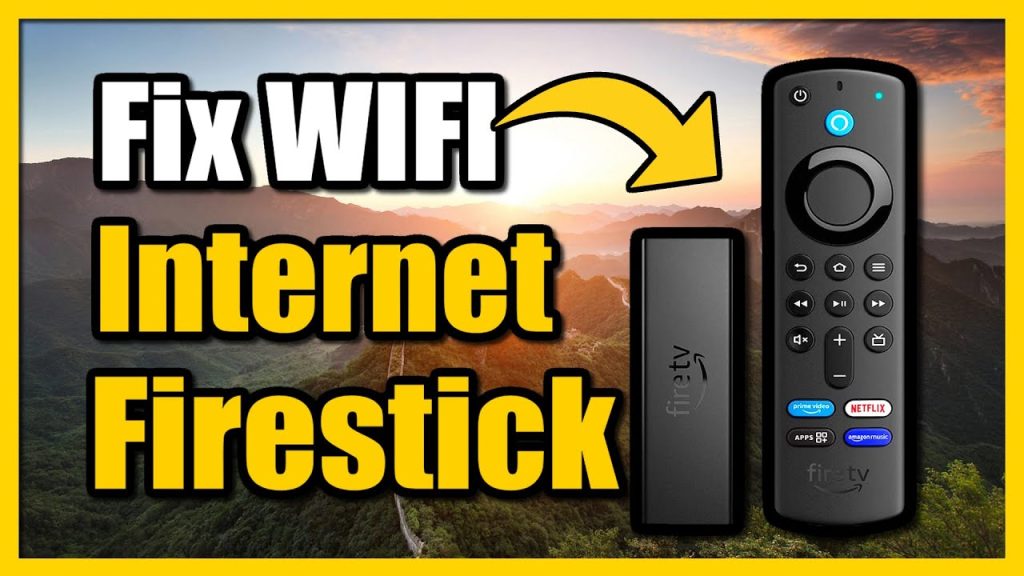
If your Firestick keeps buffering, disconnecting, or showing that annoying No Internet message… youre not alone.
WiFi issues are one of the most common problems Firestick users face. And the worst part? It always happens right when youre about to watch something important.
But dont worry.
In this friendly, step by step 2026 guide Im going to show you exactly how to fix Firestick WiFi issues using 3 proven solutions. No complicated tech talk. Just simple fixes that actually work.
Well cover:
- Why Firestick WiFi problems happen
- The 3 best solutions
- Advanced fixes (if needed)
- How to prevent WiFi problems in the future
- When its time to upgrade
Lets fix your connection 👇
Why Does Firestick Keep Disconnecting from WiFi?
Before jumping into fixes lets quickly understand why this happens.
Most WiFi problems on devices like:
- Amazon Fire TV Stick 4K
- Amazon Fire TV Stick Lite
Are caused by:
- Weak WiFi signal
- Router overload
- ISP throttling
- Network congestion
- Outdated Firestick software
- Router placement
- 2.4GHz interference
- Too many connected devices
Good news? 90% of cases are easy to fix.
Solution 1: Restart Everything (The 60 Second Fix)
Sounds basic, but this works more often than people think.
Why Restarting Works
Routers and streaming devices build up temporary memory glitches. Restarting clears those bugs instantly.
How to Do It Properly
1️⃣ Unplug your router from power
2️⃣ Unplug your Firestick
3️⃣ Wait at least 60 seconds
4️⃣ Plug the router back in first
5️⃣ Wait until internet fully reconnects
6️⃣ Plug Firestick back in
Boom.
This alone fixes most random disconnect issues.
Bonus Tip: Restart from Firestick Menu
Instead of unplugging, you can restart from:
Settings → My Fire TV → Restart
Still effective.
Solution 2: Improve Your WiFi Signal (The Real Problem)
Most Firestick WiFi problems aren’t about speed.
They’re about signal strength.
Even if you have 200 Mbps internet, weak signal = buffering and disconnects.
Step 1: Check Signal Strength
On Firestick:
Settings → Network
Select your WiFi network and check signal quality.
If it says:
- Fair
- Weak
Thats your issue.
Step 2: Move Your Router
Router placement matters a lot.
Avoid placing router:
❌ Behind TV
❌ Inside cabinets
❌ On the floor
❌ Near microwaves
❌ Near thick walls
Best placement:
✔ Central location
✔ Elevated surface
✔ Open area
✔ Away from electronics
Step 3: Switch to 5GHz WiFi
Most modern routers offer:
- 2.4GHz
- 5GHz
2.4GHz = longer range but slower
5GHz = faster but shorter range
If your Firestick is close to router → use 5GHz.
This reduces interference and improves streaming stability.
Step 4: Use an Ethernet Adapter (Game Changer)
Want zero WiFi problems?
Use Amazons Ethernet adapter.
This turns your Firestick into a wired connection device.
No interference.
No random drops.
No buffering spikes.
Especially recommended for:
- IPTV users
- 4K streaming
- Live sports
Solution 3: Fix Router & Network Settings
Sometimes the problem isnt the Firestick its your router settings.
Lets tweak them.
Change WiFi Channel
Routers automatically choose channels, but sometimes they overlap with neighbors.
Too many devices on same channel = interference.
Login to your router settings and manually choose:
- Channel 1, 6, or 11 (for 2.4GHz)
This reduces signal congestion.
Update Router Firmware
Old firmware = bugs and instability.
Log in to router dashboard and check for updates.
Updating firmware can improve connection reliability.
Reduce Connected Devices
If your home has:
- Smart TVs
- Phones
- Tablets
- Gaming consoles
- Smart home devices
Your router may be overloaded.
Try disconnecting unused devices.
Advanced Fixes (If Problems Continue)
If the 3 main solutions didnt solve it, try these:
Clear Firestick Cache
Apps running in background can slow down performance.
Go to:
Settings → Applications → Manage Installed Applications
Clear cache for heavy apps.
Update Firestick Software
Outdated system software can cause connection bugs.
Settings → My Fire TV → About → Check for Updates
Install any available updates.
Forget and Reconnect to WiFi
Settings → Network
Select your network → Forget
Then reconnect and enter password again.
This refreshes network profile.
ISP Throttling – Hidden Problem
Some internet providers slow down streaming traffic.
This is called throttling.
If your speed test shows good numbers but streaming buffers, this might be happening.
Some users use VPN services like:
- NordVPN
- ExpressVPN
To bypass ISP throttling.
Not always necessary but sometimes helpful.
How Much Internet Speed Do You Actually Need?
Minimum requirements:
- SD streaming → 5 Mbps
- HD streaming → 15 Mbps
- 4K streaming → 25+ Mbps
But speed alone isnt everything.
Stability matters more than raw numbers.
Firestick WiFi Keeps Disconnecting? Check These
✔ Router overheating
✔ Cheap router model
✔ Too many walls
✔ Distance over 30 feet
✔ Interference from neighbors
✔ Outdated modem
Sometimes upgrading router solves everything.
Best Routers for Stable Firestick Streaming (2026)
If youre using a 7 year old router… that might be the problem.
Modern routers with:
- WiFi 6
- Dual band
- Strong antennas
Provide much more stable connections.
Look for brands known for reliability.
When Its NOT Your Firestick
Sometimes internet outages happen.
You can test by:
Opening YouTube on your phone using same WiFi.
If phone buffers too → It’s your internet.
If phone works fine → Firestick issue.
Simple test.
Prevent Firestick WiFi Problems (Long Term Tips)
Heres how to avoid future headaches:
✔ Restart router weekly
✔ Keep Firestick updated
✔ Avoid installing too many apps
✔ Use Ethernet when possible
✔ Place router properly
✔ Upgrade old networking equipment
Prevention is easier than troubleshooting.
Firestick vs Ethernet – Which Is Better?
WiFi is convenient.
Ethernet is stable.
If you watch:
- Live sports
- IPTV
- 4K content
Ethernet is highly recommended.
Especially for devices like:
- Amazon Fire TV Stick 4K Max
Quick Troubleshooting Checklist
If your Firestick WiFi stops working:
1️⃣ Restart router
2️⃣ Restart Firestick
3️⃣ Check signal strength
4️⃣ Move router
5️⃣ Switch to 5GHz
6️⃣ Forget & reconnect WiFi
7️⃣ Update device
8️⃣ Try Ethernet
Follow in that order.
Most problems fixed before step 5.
Final Thoughts: Fixing Firestick WiFi Is Easier Than You Think
WiFi issues feel frustrating.
But usually?
Theyre simple.
The 3 main solutions:
✔ Restart everything
✔ Improve WiFi signal
✔ Adjust router settings
Solve almost every case.
You dont need to be tech savvy.
You just need the right steps.
Now next time your Firestick disconnects?
Youll fix it in minutes and get back to streaming stress-free 😎🔥